Readers, make sure you check out the awesome news stories linked at the bottom of this page!
Wednesday, 27 June 2012
Tuesday, 26 June 2012
FINAL DAY! Celebrating Through Case Studies
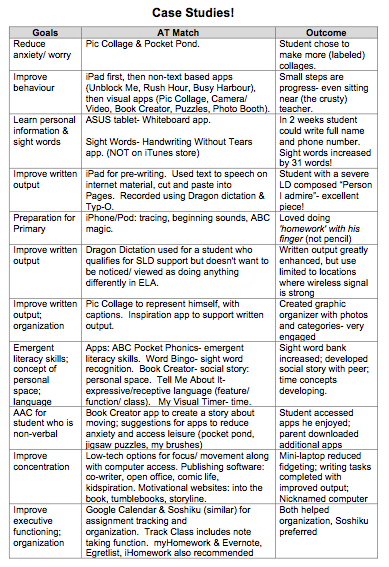
Wow, great job by all...images of my notes follow. I appreciated learning about new apps, software, websites, and other technology, through our case studies as well as the entire course. I particularly appreciated the time we spent practicing with the AAC devices- an area I have little experience. As stressful as the idea of the case studies was, they really are an amazing way to practice thoughtfully matching the person to the technology and evaluating results- as well as building a knowledge base amongst the class. Yes I went a couple of minutes over my time- BUT, I waited four and a half hours and presented last, so that surely had a bigger negative impact on my audience than the extra seconds of listening!Thursday, 21 June 2012
AT & Physical Disabilities
The impact of a standing frame for children with physical disabilities:
Medical studies have
documented the benefits of standing programs for a child’s long-term
health. In addition to the medical
benefits, children have also experienced enhanced social development and peer
interaction while standing. Therapists
and teachers notice increased cognition, alertness, vocalization and
responsiveness. Parents have observed an
increase in daily living activities, and kids like how standing allows them to
playJ
Wednesday, 20 June 2012
The Case Against Assistive Technology
It's true, there was a time when seat belt use wasn't common....
...so what's the holdup with Assistive Technology?
Saturday, 16 June 2012
Switch Access
Tyler's growth gave us an opportunity to closely examine: developmental milestones, the urgency of contact with specialists, and the importance of TRAINING! Great demonstration of use of a head mounted switch using the head as a control site using indirect selection. What a progression to direct selection using the iPad! (and huge $aving$)
I was also surprised at the simplicity of the PowerLink4 demo (hold on, seconds on, on/off) environment control unit. These teach an understanding of cause/effect (switch/ action) and making choices (i.e.music or light). Cueing for these tasks are so crucial to conceptual understanding- the need to name the task- not the action ("lights on" -vs- "hit switch"). The implementation of student tasks needs to be in authentic contexts (i.e running a buzzer in PE, instructions in literacy). Wait time is also crucial- additional prompts can be too much to process.
Viewing the "20 ways to use PowerLink" video clip demonstrates how it gives students opportunities to have a direct impact on/ control over their environment, promotes communication, and engagement. Successful implementation depends on: motivation, suitable activities, practice time, encouragement, position of switch, and type of switch. Once students can use a switch they can move onto a computer.
Other activities a student could use a switch to control:
- running the audio in a listening centre/guided reading (ELA)
- accompaniment (music)
- running announcements, shredder (office)
- in charge of lights, electric pencil sharpener (classroom)
- appliances such as toaster, microwave, hotplate, blender (hot lunch program)
- timer/ score keeper (P.E/ sport events)
Making a Difference...One App at a Time
The Inventors
Barbara was the thinking person in the room during these presentations as she took pictures! And alas, Jana did the cutting and pasting of our photos too so I'm going to link to her blog post for reference! I'll do my best to briefly describe the variety of unique and inspiring low-tech assistive technology created by the class:
1. Sticky Tray- using double sided suction cups as a secret ingredient, items can be held in place on a tray-develops fine and gross motor skills, support for physical disabilities
2. Turkey Baster Pencil Holder- pencil goes right in and the baster becomes a grip (and the end actually erases)...supports students with fine motor problems
3. Squeeze Bottle- pencil fits in tip of salad dressing bottle, which becomes a pencil holder, rubber bands can add grip, weight (rocks) gives it orientation in space
4. Easy Grip Magnetic Letters- plastic cutting boards with a picture of each letter glued on top, ice cube tray bottoms as knobs on a magnetic strip sitting in a slant tray for physical manipulation of letters while developing emergent literacy skills
5. Spongy Board- raised writing/cork board, raised by soft sponges for improved access
6. Spatula Scissors- silicone spatulas as handles and then clamped onto the edge of a table to cut with one hand to support visual motor integration/ planning
7. One-handed Marker Pull- handprint-making cement placed in bottom of container, markers stuck into cement with caps down to stick in then pull markers out and return- supports gross motor and keeps your runaway caps!
8. Popsicle Painter- popsicle kit with fruit decorations as larger handles (to support grasp) and make-up sponges cut into different textures for painting- supports gross motor skills
9. Measure Assist- to a bathroom squeegee, add a ruler and/or protractor, all with double-sided velcro for easier pickup. Has applications to book opening.
10. Skater Rex- a toy to encourage active play using a dinosaur toy fixed to a skateboard11. Zipper Pull- use a camera leash to help manage zippers
1. Sticky Tray- using double sided suction cups as a secret ingredient, items can be held in place on a tray-develops fine and gross motor skills, support for physical disabilities2. Turkey Baster Pencil Holder- pencil goes right in and the baster becomes a grip (and the end actually erases)...supports students with fine motor problems
3. Squeeze Bottle- pencil fits in tip of salad dressing bottle, which becomes a pencil holder, rubber bands can add grip, weight (rocks) gives it orientation in space
4. Easy Grip Magnetic Letters- plastic cutting boards with a picture of each letter glued on top, ice cube tray bottoms as knobs on a magnetic strip sitting in a slant tray for physical manipulation of letters while developing emergent literacy skills
5. Spongy Board- raised writing/cork board, raised by soft sponges for improved access
6. Spatula Scissors- silicone spatulas as handles and then clamped onto the edge of a table to cut with one hand to support visual motor integration/ planning
7. One-handed Marker Pull- handprint-making cement placed in bottom of container, markers stuck into cement with caps down to stick in then pull markers out and return- supports gross motor and keeps your runaway caps!
8. Popsicle Painter- popsicle kit with fruit decorations as larger handles (to support grasp) and make-up sponges cut into different textures for painting- supports gross motor skills
9. Measure Assist- to a bathroom squeegee, add a ruler and/or protractor, all with double-sided velcro for easier pickup. Has applications to book opening.
10. Skater Rex- a toy to encourage active play using a dinosaur toy fixed to a skateboard11. Zipper Pull- use a camera leash to help manage zippers
Tuesday, 12 June 2012
Dollars & Sense!
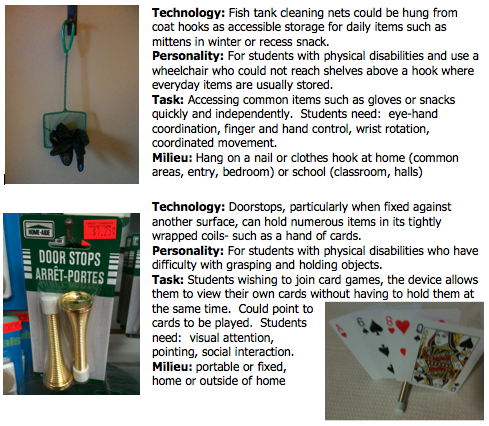
During Saturday's class we viewed some really cool examples of low-tech 'off the shelf' AT from the Dollar Store. Who would have thought of: hair rollers as pencil grips; clothes pins as page turners; stockings as soap on a rope; or using car washers to paint? Its like using Tony Ryan's "Different Uses" key from his Thinkers Keys and really changing the purpose of a product.
I went into the Dollar Store as a secret spy with my illicit picture-taking of the highly secretive items offered for sale....wondering how any of the products could possibly have multiple uses. I did my scouting, left, did lots of thinking, and went back to make some selections. A few ideas:
Monday, 11 June 2012
Saturday, 9 June 2012
Day 4- Nearly There! Going LOW-TECH
Great job on the social stories folks! We got to view a story created using the Book Creator app on: raising hands, personal space, taking turns at the water fountain, and using a (coat) hook. Everyone was surprised at how fast these could be created and how much easier than the old-school printing, cutting and laminating (and laminating, and re-laminating)...
Now to the low-tech. After reviewing some developmental checklists, we had an opportunity to explore the able play website and it's search tool which rates toys according to their suitability for students with physical, sensory, communicative, or cognitive abilities. Here is an example of a way to analyze a toy in a manner similar to their rating system:
The product: Handy Manny's toolbox. An icon from the TV show, the tool box allows children to pretend they are Manny and interact with his tool friends. It comes with 7 tools. Press the Manny button on the toolbox and the (removable) tools will move, speak, or sing. Toys can each be removed to play with separately. Cost: $42.99
The review: The suggested age group for this toy is 3-4. The tools are solid, plastic, and have no moving parts. The toy box itself holds batteries and has a push button in front. Portable and light (1.1 lb.)
Applications for Children with Disabilities
Physical: 2 star. (+) Children can simply touch the large button or use the accessories independent of the toolbox. Bilateral coordination skills not needed. Gross motor skills can be used to lift the box/ use the tools. Reaching skills can be developed. (-) Movement is required to activate the toys physically and aurally. Precision in placement if returning the tools is needed. Difficult for children with limited eye-hand coordination skills.
Sensory: 2 star. (+) The individual pieces are detailed enough to discriminate. Play with the tools is open-ended. (-) Visual discrimination is required to select/return tools. Appeal is largely the aural stimulation so children with hearing impairments have less information to gather/ enjoy. Plastic could slide around- may need a non-skid/ textured liner added.
Communicative: 4 star. (+) Play is realistic and can encourage positive social behaviours and develop an understanding of the concept of pretend play. Play can be independent or shared. Very simple functionality. Children can learn matching skills. Imaginative play can be modelled/ enhanced. Connections to known TV character can be made. (-) Does not require interaction.
Cognitive: 4 star. (+) Play is open-ended. Math skills can be incorporated by counting the tools. Verbal communication can be targeted. (-) Phrases, songs, movement of the tools could be over-stimulating.

Features and Benefits: Durable, High contrasting colours, Open-ended, Aurally stimulating, Simple- single action initiation.
Developmental Processes Promoted: Imaginative play, Cause & Effect, Action concepts (in/out, push, go), Eye-hand coordination, Hand grasp, Pointing, Motor planning, Reaching/ Arm extension, Spatial relationships (up/down), Object recognition/ identification.
As Barbara said, I'm sure we'll never look at any toy the same way again!
Now to the low-tech. After reviewing some developmental checklists, we had an opportunity to explore the able play website and it's search tool which rates toys according to their suitability for students with physical, sensory, communicative, or cognitive abilities. Here is an example of a way to analyze a toy in a manner similar to their rating system:
The product: Handy Manny's toolbox. An icon from the TV show, the tool box allows children to pretend they are Manny and interact with his tool friends. It comes with 7 tools. Press the Manny button on the toolbox and the (removable) tools will move, speak, or sing. Toys can each be removed to play with separately. Cost: $42.99The review: The suggested age group for this toy is 3-4. The tools are solid, plastic, and have no moving parts. The toy box itself holds batteries and has a push button in front. Portable and light (1.1 lb.)
Applications for Children with Disabilities
Physical: 2 star. (+) Children can simply touch the large button or use the accessories independent of the toolbox. Bilateral coordination skills not needed. Gross motor skills can be used to lift the box/ use the tools. Reaching skills can be developed. (-) Movement is required to activate the toys physically and aurally. Precision in placement if returning the tools is needed. Difficult for children with limited eye-hand coordination skills.
Sensory: 2 star. (+) The individual pieces are detailed enough to discriminate. Play with the tools is open-ended. (-) Visual discrimination is required to select/return tools. Appeal is largely the aural stimulation so children with hearing impairments have less information to gather/ enjoy. Plastic could slide around- may need a non-skid/ textured liner added.
Communicative: 4 star. (+) Play is realistic and can encourage positive social behaviours and develop an understanding of the concept of pretend play. Play can be independent or shared. Very simple functionality. Children can learn matching skills. Imaginative play can be modelled/ enhanced. Connections to known TV character can be made. (-) Does not require interaction.
Cognitive: 4 star. (+) Play is open-ended. Math skills can be incorporated by counting the tools. Verbal communication can be targeted. (-) Phrases, songs, movement of the tools could be over-stimulating.

Features and Benefits: Durable, High contrasting colours, Open-ended, Aurally stimulating, Simple- single action initiation.
Developmental Processes Promoted: Imaginative play, Cause & Effect, Action concepts (in/out, push, go), Eye-hand coordination, Hand grasp, Pointing, Motor planning, Reaching/ Arm extension, Spatial relationships (up/down), Object recognition/ identification.
As Barbara said, I'm sure we'll never look at any toy the same way again!
Saturday, 2 June 2012
Day 3: Performance Enhancing Apps
After seeing (and later buying!) a few of Barbara's new "favourites' this morning (I really need a VGA cord for school), small groups got together to view past webinars, so that we could access a wider variety of apps available.
First, the apps of the day really stood out for their video/graphic abilities and can definitely contribute to sustained engagement for pretty much any learner. We were able to virtually dissect frogs (Frog Dissection), interact with a timeline of evolution and history (Back in Time), engage in physics concepts (Simple Physics), view aspects of geography and culture through World Atlas, and learn about the rainforest through Encyclopedia Brittanica for kids- which also does speech selection. Now back to the webinars (all available for purchase through the South Shore AT site):
The first group demonstrated a few apps from the category: Alternate Access for Physical Disabilities: Write Pad (using a stylus or finger) allows you to write on a screen which the app then converts to text, which would be very helpful for students not keyboarding and just developing the motor control to print. Dragon Dictation is a speech to text app that allows you to talk into your device and have the text sent back to edit, email, etc. Even with a strong internet connection this app is challenging to use as students have to be able to initiate, plan, hold in memory, and speak. Touch Trainer is an app designed to teach users how to interact with a touch screen by varying the size and location of targets to touch.
The next group viewed Executive Functioning: Sock Puppets look like so much fun, you could use this for constructing social stories with students as well. Shredder allows you to type in your negative/ bad thoughts which are dropped into a virtual shredder. I've already shown this to my SLP and she has taken it out to use across her entire circuit! Let Panic Go helps to distract your thinking by giving your eyes and mind a calming task.
Early Learning: Kiddie Questions helps to teach early language and problem solving skills. Bugs and Buttons allows students to practice pinching and grabbing skills. Jib Jab is a fun app similar to the website that has been entertaining for years: take a screen shot for a keepsake or to use in a portfolio or keep as a writing prompt!
Communication: Sign4Me shows you a 3D image of a man (who you can turn and view at different angles) where you type in a single word or phrase and the avatar signs it. You can bank phrases in the history, change his speed, and share over 11 500 words! Speech Tutor gives specific instructions and video demonstrations of how to articulate.
Math: Money Count gives students different platforms for counting Canadian money. Symmetry Shuffle allows you to practice flips, turns, etc. Number Line is a continuous line you drag across the screen. Math (teacher plus) is a series of video lessons.
Free Apps in Special Education: Fish Pond is a beautiful interactive pond used for: calming, sensory regulation, or transitions. Science 360 is available for iPad only, and allows you to access both videos & pictures. TourWrist shows panoramic views from around the world.
Unfortunately I missed much of the work/ discussion on video modelling and social stories. I have downloaded iBook Creator on my devices and experimented with developing a social story for students with autism. I chose one very near and dear to my heart (and stomach), and you can see a screenshot of most of the individual pages in the image on the left. This app is VERY easy to use and can be exported to iBook as an epub or pdf document. I need better graphics (not one to take my own photos for), but at least got the experience. Unfortunately you can't record voices/reading in iBook Creator (for iPhone/Pod), but it will upload video. Some of my students are now learning to use this as well as a diary for their bean plants' growth:-)
First, the apps of the day really stood out for their video/graphic abilities and can definitely contribute to sustained engagement for pretty much any learner. We were able to virtually dissect frogs (Frog Dissection), interact with a timeline of evolution and history (Back in Time), engage in physics concepts (Simple Physics), view aspects of geography and culture through World Atlas, and learn about the rainforest through Encyclopedia Brittanica for kids- which also does speech selection. Now back to the webinars (all available for purchase through the South Shore AT site):The first group demonstrated a few apps from the category: Alternate Access for Physical Disabilities: Write Pad (using a stylus or finger) allows you to write on a screen which the app then converts to text, which would be very helpful for students not keyboarding and just developing the motor control to print. Dragon Dictation is a speech to text app that allows you to talk into your device and have the text sent back to edit, email, etc. Even with a strong internet connection this app is challenging to use as students have to be able to initiate, plan, hold in memory, and speak. Touch Trainer is an app designed to teach users how to interact with a touch screen by varying the size and location of targets to touch.
The next group viewed Executive Functioning: Sock Puppets look like so much fun, you could use this for constructing social stories with students as well. Shredder allows you to type in your negative/ bad thoughts which are dropped into a virtual shredder. I've already shown this to my SLP and she has taken it out to use across her entire circuit! Let Panic Go helps to distract your thinking by giving your eyes and mind a calming task.
Early Learning: Kiddie Questions helps to teach early language and problem solving skills. Bugs and Buttons allows students to practice pinching and grabbing skills. Jib Jab is a fun app similar to the website that has been entertaining for years: take a screen shot for a keepsake or to use in a portfolio or keep as a writing prompt!Communication: Sign4Me shows you a 3D image of a man (who you can turn and view at different angles) where you type in a single word or phrase and the avatar signs it. You can bank phrases in the history, change his speed, and share over 11 500 words! Speech Tutor gives specific instructions and video demonstrations of how to articulate.
Math: Money Count gives students different platforms for counting Canadian money. Symmetry Shuffle allows you to practice flips, turns, etc. Number Line is a continuous line you drag across the screen. Math (teacher plus) is a series of video lessons.
Free Apps in Special Education: Fish Pond is a beautiful interactive pond used for: calming, sensory regulation, or transitions. Science 360 is available for iPad only, and allows you to access both videos & pictures. TourWrist shows panoramic views from around the world.
Unfortunately I missed much of the work/ discussion on video modelling and social stories. I have downloaded iBook Creator on my devices and experimented with developing a social story for students with autism. I chose one very near and dear to my heart (and stomach), and you can see a screenshot of most of the individual pages in the image on the left. This app is VERY easy to use and can be exported to iBook as an epub or pdf document. I need better graphics (not one to take my own photos for), but at least got the experience. Unfortunately you can't record voices/reading in iBook Creator (for iPhone/Pod), but it will upload video. Some of my students are now learning to use this as well as a diary for their bean plants' growth:-) Friday, 1 June 2012
Monday, 28 May 2012
AAC: Proloquo2Go & More
Day 2: am/pm was centred on AAC (augmentative and alternative communication) devices/ systems. Yes, we were introduced to a number of devices other than the iPad....but really....no comparison- even in price in most cases! The process of matching the user and their abilities to the requirements of their task, however, does remain the same, regardless of the devices ultimately selected for use.
We had to work on a number of skills ourselves in order to interpret details of the case study, learn to use ProloquotoGo, and create a realistic selection set. Originally, we agreed that we would create something like a factor tree to create categories and examples within it, but the more we added, and the greater depth we established, our original plan had very little resemblance to what we ended up with. I wish we had given more time to deciding how we would present our "Bella"'s sets, but within a couple of hours, three people learned to use all of the features of the app, make decisions to match the profile of a specific student, create several levels of communication for a student, and share it.
As we worked through our decision-making, it felt natural to consider and discuss linguistic, communicative, and linguistic abilities, but really was a challenge not to take for granted physical and sensory abilities. Luckily the settings offer choices for many of these options (size of selection cells, auditory feedback, colour of cells/background, etc.). It was also quite natural to think of questions and answers, but the challenge was to predict situations in which the user could use their device (THEIR being another key, it makes sense that the primary user needs to have continuous access- not just when they are receiving support/instruction) to extend conversations. As far as usability goes, being in a group of three members all learning the app, and creating many levels/depths of messages- we got confused between saving a sentence as a category and saving it as a message....although that allowed us to create even deeper levels at a later time. The exercise also really gave us a new appreciation for how vital our speech-language pathologists must be in the process.
A sampling of some other AAC apps on the iTunes store:
Thursday, 17 May 2012
Wednesday, 9 May 2012
Communication & Proloquo2Go


Day 1/ Class 2 got even more expensive for me after we used the Inspiration app to try to synthesize our understandings of "communication" (yes, I went straight to the app store and bought it). Wow. Our groups all included 2 of the components of effective communication which included the ideas of a partnership and common languages, but we all struggled to think of the requirement of joint attention (hope that isn't saying something about what kind of students we are)! I wish I had taken a screen shot of our webbing.
After having access to Proloquo2Go via an iPod touch at school and never knowing how to use it, GUIDED instruction in class allowed me to set up a few selection sets (with symbols) that could allow independent access to many different social situations. Webinars are available as free podcasts on the iTunes store.
QR (Quick Response) Codes

This could be REALLY cool! I played with QR code generation, with an app and using free websites (QR Code Generator). Scan this code to link to my blog for AT: Access to Literacy.I've also included a link to a blog post about a language/visual arts project which incorporated QR codes into the presentation of published products. Transliteracy- QR Codes and Art
I found a QR code on my BANANA this morning, and a QR code was a really neat addition to an article in a professional journal I was just reading. The photo on the right shows how it was embedded into the article. It wasn't simply a link to another location, but to a video of the author modelling strategies he had shared within the article.
Saturday, 5 May 2012
The Launch
Day 1 introduced me to the possibilities of "Pic Collage": my new favourite (free) app- through our paired class introductions using the iPads. I loved it so much I posted a Mother's Day card to Facebook using it. Since my mother was out of the country- she loved it! I have already used it with students as a writing prompt, platform for sequencing, and presentation forum for demonstrating skills and knowledge. If only there were more stickers;-)
Thankfully we spent some time defining the target primary users of the technology we will be exploring, as you really need to get in the mindset of the needs we will be attempting to provide....keeping in mind that we are trying to provide access to tasks and improve the performance of individuals with disabilities.Barbara also treated us to a feature of "AT: Back to the Future", where I had a flashback to learning to use software like "KidPix" during my first teaching practicum. That flashback, however, did NOT include the class compositions that are the norm now and the number of students with disabilities who previously had little to no access to teaching and learning. The past/ present/ future uses and examples really forced me to consider what a huge role that TIME plays in assessing the learner/AT match (skill sets, needs, milieu, support, task, technology's characteristics). These factors are in constant motion and continually affected by each other AND time. We need to keep three filters on during decision-making processes: functionality, accessibility, and inclusivity. I can't wait to see universal instructional design materials becoming available to all learners, not targeting students with learning disabilities.
Subscribe to:
Posts (Atom)